- Right click on desktop.
- Click on personalize. Shown in below screen shot.
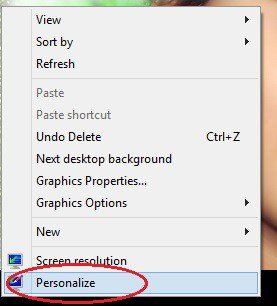
Personalize window will be opened.
If you don’t want slide show select any theme and click save theme.
If you want slide show click on “desktop background” which is at the bottom of window. Just see below screen shot.

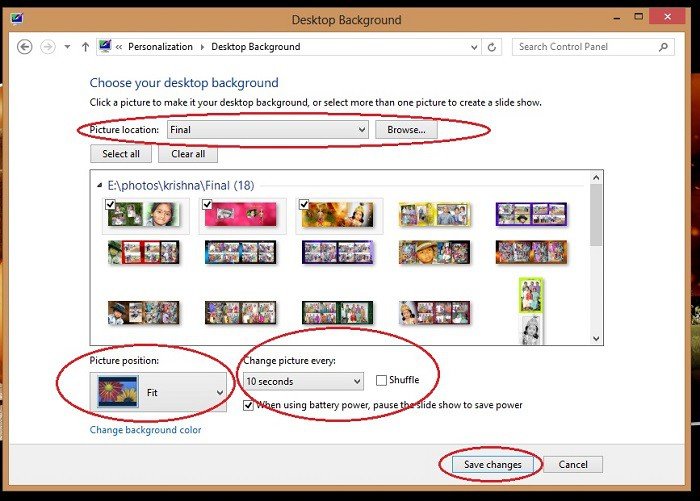
Desktop Background window will be opened.
- Click on Browse which is next to Picture location.Select folder where you have placed photos.
- All the photos are displayed in below box.
- Check as many photos as you like to put as slide show. Un check remaining photos.
- Click on arrow under picture position. Select Fit.
- Click on arrow under “change picture every”.Select the time interval for photos.Better to select it as 10 seconds.
- Check “When using battery power, pause the slide show to save power”. With this your slide show will be stopped, when you don’t use AC adapter and saves the battery power.
- Click on save changes.
Now your desktop will display a slide show.
No comments:
Post a Comment